
GameplayDebugger
GameplayDebugger is the primary entry point for diagnosing the GAIS runtime pipeline. It condenses the current control state of the debugged Pawn/AIController into several high-signal panels: who owns control, which layer is active, whether a command has entered the Command layer, whether the queue contains tasks, whether Tactical Assignment has candidates or failure reasons, and whether the squad and formation have converged. For parameter meanings and configuration rules, continue with the corresponding parameter reference documents.
Related documentation: for common diagnostic paths, see Troubleshooting Flows; for team and debugging fields, see Team Identity and Debugging Parameters; for command fields, see Command Definition and Dispatch Parameters; for Tactical Assignment fields, see Tactical Assignment Parameters.
Start with the Summary Line
After selecting a debug target, inspect the summary line first, then expand the relevant section based on the summary signals.
Summary signal | Meaning | Next step |
|---|---|---|
Controller / Pawn | Whether the current debug target is the AI you expected. | If it is empty or incorrect, select the target again. |
Team / TeamSource | Where the team identity comes from. | If team attitude is incorrect, inspect ProjectPolicy and TeamAgent first. |
Layer / Stack | The currently active and applied StateTreeStack layers. | If a command exists but the Command layer is not active, inspect Stack first. |
Queue | Whether StateTreeQueue has a current task, pending tasks, or a failure result. | If the command is received but the behavior does not move, expand Queue. |
Command | The current command name. | An empty value means the command never entered CommandSystem or has already ended. |
Problem | An automatic summary of missing components and control-chain errors. | Resolve Problem entries before inspecting details. |
Trace | A short Command -> Stack -> Queue trace. | Use it to identify which layer contains the break. |
If Problem shows No Blackboard, No Stack, No Queue, or No CommandSystem, fix the component/controller integration first. If it shows Current command without Command layer, CommandSystem has a current command, but StateTreeStack has not entered the Command layer. Inspect the command's ExecutionDefinition and execution routing first.
Panel Navigation
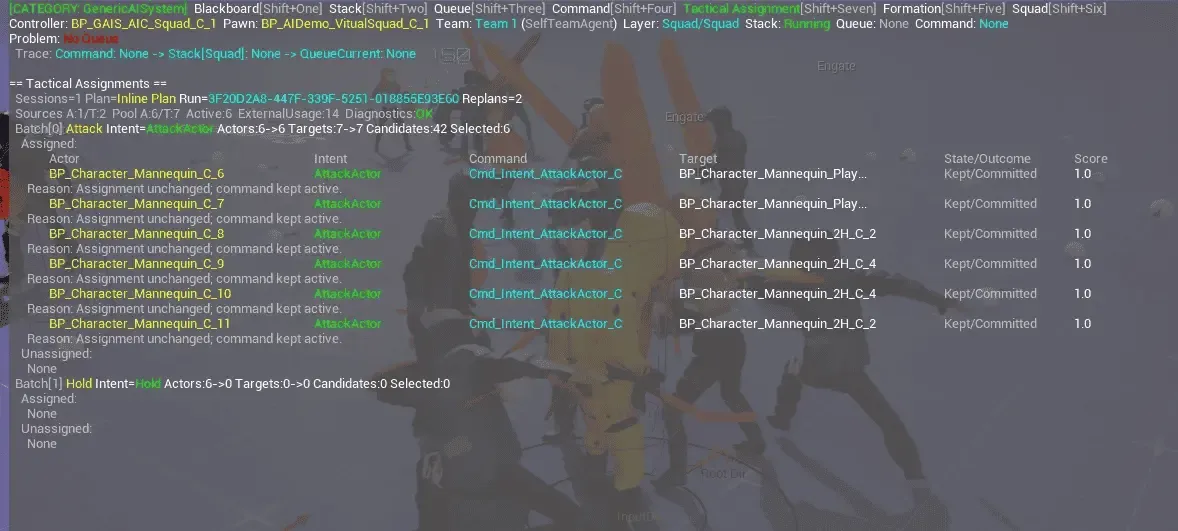
Sections in the GAIS category can be expanded as needed. A common inspection order is:
- Command: confirm whether the command appears in Current, Last, and Queue.
- Stack: confirm whether the Command layer became the active layer.
- Queue: confirm whether the Command-layer task was dispatched, is running, completed, or timed out.
- Tactical Assignment: confirm whether automatic AI assignment has candidates, commands, and targets.
- Formation / Squad: confirm the squad, roles, slots, and Movement Intent.
- Blackboard: confirm whether keys written by StateTree or command context match expectations.
When the debugger output is too dense, do not inspect every panel at once. Expand one panel based on the symptom, identify the stage, and then move to the adjacent panel.
Reading the CommandSystem Panel
The CommandSystem panel displays Current, Last, Queue, LastResult, and ReasonTag.
What you see | Meaning | Next step |
|---|---|---|
Current is | There is no current command, or the command ended immediately. | Return to the dispatch side and inspect |
Current has a command, but the unit does not move | CommandSystem received the command, but the execution layer is not progressing. | Expand Stack/Queue and check whether the Command layer and task were entered. |
LastResult is Failed/Canceled | The command ended with an abnormal result. | Inspect ReasonTag, then check |
Queue contains multiple commands, but the current command does not progress | The current command has not ended, or the processing policy does not allow replacement. | Check whether the command execution layer reports a result and whether the command handling policy matches expectations. |
Index is not the expected value | MultiVariant selected the wrong variant. | Inspect the UI, Tactical Assignment resolver, or |
Target/Loc does not match the player's click | Payload construction or preview snapping differs from the final command target. | Treat |
Reading the Stack and Queue Panels
The Stack panel answers: “Which behavior layer currently owns control?” The Queue panel answers: “Have the tasks in that layer been dispatched and completed?”
Common interpretations:
- CommandSystem has Current, but the Stack Requested/Applied layer remains on another layer: the command did not establish a valid Command route through its ExecutionDefinition. If a StateTree execution configuration is used, also verify its StateTree reference and context.
- Stack is on the Command layer, but Queue has no CurrentTask: the Command layer is active, but no task was queued, or the StateTree task was not dispatched.
- Queue has a CurrentTask that never completes: the task execution layer did not report completion, failure, or cancellation.
- The latest Queue result contains a reason tag: follow the reason tag to the corresponding StateTree task, Blackboard key, or command target.
Reading the Tactical Assignment Panel
The Tactical Assignment panel is the primary entry point for diagnosing automatic AI assignment. After starting PIE, open GameplayDebugger, enable the GenericAISystem category, select a Pawn controlled by an AIController, and press Shift+7 to switch to the Tactical Assignment section. Other GAIS sections use Shift+1 through Shift+6; the current shortcut navigation appears at the top of the panel.
Inspect the overview first, then inspect each batch.
Signal | Meaning |
|---|---|
Sessions / Plan / Run / Replans | Whether an active session exists and whether the current plan is being reevaluated. |
Sources A/T | How many Assignee Sources and Target Sources were used in this run. |
Pool A/T | Total Actor/Target candidates collected from the sources. |
ExternalUsage | The number of targets already occupied by other sessions or earlier batches. |
Actors before -> after | Whether Actor Filter removed candidates. |
Targets before -> after | Whether Target Filter removed targets. |
Candidates | How many candidate pairs remain after intent resolution, command validation, target validation, and scoring. |
Selected | How many pairs the Allocator selected. |
Assigned / Unassigned | Each Actor's State, Outcome, Command, Target, Score, and Reason. |
When you see NoResolvedCommand, inspect the Unit's CommandIntentMappings or a custom IGAIS_CommandIntentResolver. For CannotObeyCommand, inspect executor requirements and tags. For InvalidTarget, inspect the command's TargetType, target data, team relationship, and target tags. If Candidates is greater than zero but Selected is zero, inspect the Allocator, target capacity, and ExistingTargetUsage.
The panel's SourceTag identifies how a target entered the candidate pool. If the source count is correct but Pool T is zero, inspect Gather/EQS. If Pool T contains values but Targets before -> after drops to zero, inspect the current Batch's Target Filter, especially SourceTag, Team Attitude, and Has Actor/No Actor. Matching or differing SourceTags do not change the physical target capacity key.
When lifecycle logs are also required, temporarily run Log LogGAIS_Tactical Verbose in the console. It covers Session lifecycle, replanning, and commit results. GameplayDebugger shows the current Session/Batch snapshot; per-source Actor/Target details are currently written through Visual Logger using UE_VLOG. After diagnosis, run Log LogGAIS_Tactical Log. To preserve the setting across launches, add LogGAIS_Tactical=Verbose under [Core.Log] in the project configuration.
Reading the Formation and Squad Panels
The Formation panel answers: “Are the formation asset and slots available at runtime?” The Squad panel answers: “Have squad members, roles, slots, and Movement Intent converged?”
Symptom | Signals to inspect first |
|---|---|
The squad appears uninitialized | Squad Definition, Initialized, FormationStatus, and Capacity. |
A required role is missing | Role Current/Max, Required, and Status. |
A unit occupies the wrong slot | Unit Role, SlotId, SlotTags, and slot assignment diagnostics. |
A unit has a slot but does not move | DesiredLocation, DesiredSpeed, bShouldMove, and MovementIntentDriverName. |
A slot behaves incorrectly on the NavMesh | Formation |
Results are incorrect after adjusting slot scoring | Tag, distance, weight, and stable-score contributions in slot assignment diagnostics. |
After slot assignment succeeds, movement still needs to be executed by the project's movement system or UGAIS_UnitMovementIntentDriver. Slots and Movement Intent provide spatial targets and movement recommendations.
Reading the Blackboard Panel
The Blackboard panel is useful for verifying whether StateTree or command context wrote the keys required by the execution layer. Use CommandSystem to diagnose command validity; use this panel to inspect the context received by the execution layer.
Common uses:
- After a command enters the Command layer, confirm that keys such as command definition, target Actor, target Location, Index, and HomeLocation contain values.
- After Tactical Assignment commits successfully, confirm that the execution layer receives the final assigned target. An old or empty target indicates that context synchronization is still incorrect.
- If Queue contains a task but behavior does not progress, confirm that the names and types of keys required by the task match the StateTree configuration.
Usage Principles
Debug along the path “upstream request -> GAIS contract -> execution layer”:
- Use CommandSystem to confirm whether the command was received.
- Use Stack/Queue to confirm whether execution ownership switched and work was dispatched.
- Use Blackboard to confirm whether the execution context was written.
- Use Tactical Assignment to confirm whether automatic assignment produced a command.
- Use Squad/Formation to confirm whether organizational and spatial recommendations converged.
If a panel is empty, do not immediately modify documentation or assets. First confirm that the target Actor actually owns the corresponding component. GameplayDebugger only displays runtime state that can be collected from the current debug target.