

Overview
This article briefly introduces some commonly used component references provided in the UI system.
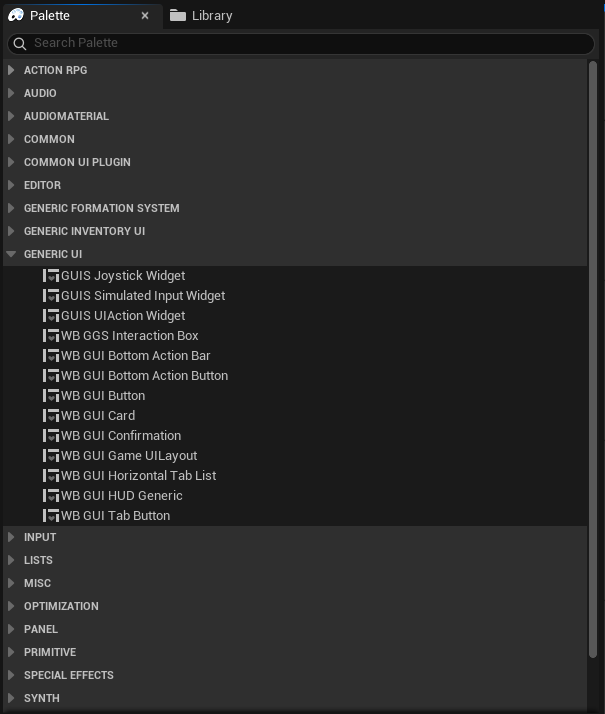
DetailsSectionBuilder
Any data object that needs to be presented through the UI can be simple or complex.
The role of the DetailsSectionBuilder is:
Dynamically select the appropriate 1 or moreDetailsSectionWidgets to display information about different parts of a data object in amodularway.
For example, a weapon may have basic information, as well as enhancement information or skill attachment information, and different DetailsSections can be used to display different parts of the weapon's information.
There is no need to write a bulky UI to display everything, but rather use the DetailsSectionBuilder to present complex data in a modular way.
Button
Blueprint: WB_GUI_Button
Use case:
- Dialog button
- Bottom action bar button
Tab button
Blueprint: WB_GGF_TabButton
A default button that implements the GGF_TabButtonInterface, used in conjunction with WB_GGF_HorizontalTabList.
Use case:
- Top navigation button on the game menu.
- Item category button on the inventory panel.
Detail View
DetailView is a Widget with a vertical layout 'Box_DetailSections' that will be associated with an Item in UObject form (this Item can be anything, a character, an inventory item, etc.), and the View can configure a data asset 'SectionsBuilder' to dynamically generate a set of 'DetailSection' Widgets to display various data of the associated Item. Each DetailsSection is a Widget that will display a part of the Item's data in the order specified in the Builder.
This modular setup allows you to use different Widgets to display a specific type of data more conveniently through data assets.
Use case
Inventory item display: Suppose I have an inventory item that includes the item name and description, along with a bunch of attributes. Then I can use an ItemDetailView to display this item, which contains two parts, namely 'Section_BaseInfo' and 'Section_Stats' Widgets.
Character information display: Suppose I have a character, I can use Section_BaseInfo to display the character's name and backstory, and Section_Skills to display the skills that the current character possesses.
Tip
An Item is usually an object displayed by a ListEntryWidget in a ListView, but it doesn't have to be.
List View
GUIS provides extended ListViews, namely:GUIS_TileViewandGUIS_ListView
They can both set aWidgetFactoryto dynamically select EntryWidgets at runtime.
Widget Factory
The original TileView and ListView in UE can only select one WidgetClass to display UI data objects, but in actual games, UI data objects can be very complex, such as items in an inventory system.
WidgetFactoryis used to dynamically select the appropriate Widget to display data objects based on the incoming data object.
For example: I have a Factory that dynamically selects differentWidgetClassto present different types of items, reducing the implementation complexity of individual Widgets.Horizontal Tab List
Blueprint: WB_GGF_HorizontalTabList
This is a reusable tab component that allows you to easily set up a navigation menu, and it works in conjunction with WB_GGF_TabButton.
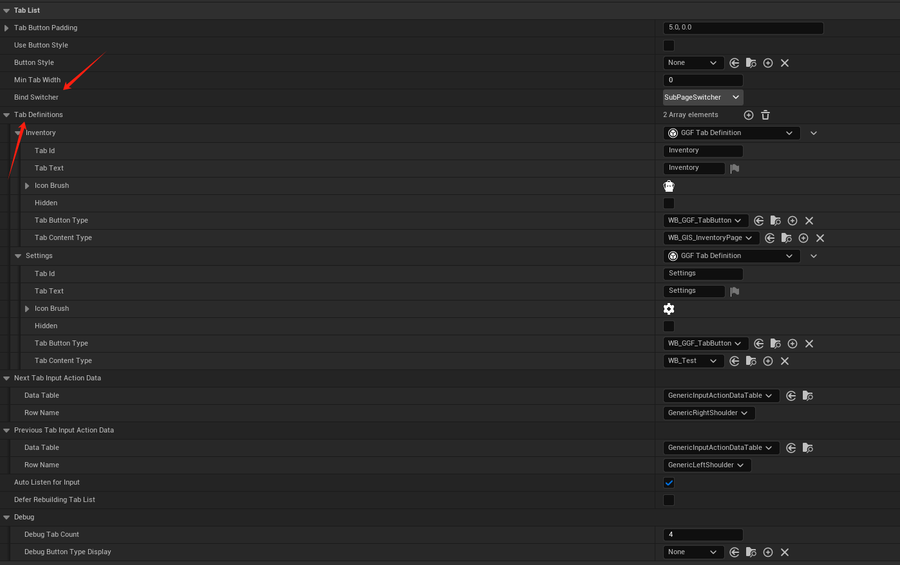
Tab definition parameters:
| Column 1 | Column 2 |
|---|---|
Parameter Name | Description |
TabID | Each tab should have a unique ID. |
TabText | The text displayed on the tab button. |
IconBrush | The icon displayed before the button text. |
TabButtonType | The type of the tab button, any CommonButtonBase that implements GGF_TabButtonInterface can be selected. |
TabContentType | Any CommonUserWidget can be selected, which will be automatically created with the selection of the tab button. |
The above figure shows the main parameters of this component that are worth noting. You can add multiple tab definitions to the TabDefinitions array, each of which can specify the specific Widget for the tab button, the text for each button, the icon, and the tab content.
In BindSwitcher, select a Switcher toassociate, and you can achieve the functionality where clicking the button automatically switches to the tab content associated with the tab button.